How to Change Order of Products on Shopify: Complete Tutorial
Why do products sometimes appear in the wrong order on a Shopify store, even after careful setup? Product order affects visibility, conversions, and the overall shopping experience. Understanding how to change order of products on Shopify helps create cleaner collections and guide customers to priority items. This complete tutorial breaks down every method, from manual sorting to automated rules, in clear steps. Follow the tutorial below and start optimizing the product display today.
Why Product Order Matters in Shopify Stores
Proper product order impacts how customers experience and interact with a Shopify store. Smart sorting supports better navigation and stronger sales performance, especially when store owners understand how to change order of products on shopify in a strategic way. Below are key reasons this matters for e-commerce success:
Customer Experience and Navigation
Products arranged logically make it easier to find what shoppers want. Easy navigation reduces frustration and helps visitors explore more items across collections. Better flow encourages longer browsing and keeps attention on the store.
Highlight Best-Selling and Priority Items
Top-placed products get more visibility and clicks. Featuring best sellers or high-margin items near the top can guide customers toward purchase decisions faster. This strategic focus helps increase revenue potential.
Support Sales and Promotion Campaigns
Adjusting order for seasonal items, new launches, or special promos keeps the store fresh and relevant. Prioritizing these products increases chances that visitors see timely deals first. This can boost short-term performance during campaigns.
Improve SEO and Organic Visibility
An organized product structure helps search engines understand page content and relevance. Better product discoverability can lead to improved rankings for key search terms, which may attract more organic traffic.
Encourage Cross-Selling and Related Purchases
Placing complementary products close together encourages add-on sales. For example, a case shown next to a phone can prompt users to consider extra purchases. This placement strategy supports higher average order value.
How to Change Order of Products on Shopify: 2 Common Methods
Wondering how to change order of products on Shopify? Shopify offers several ways to control how products appear in collections. Each method fits different store sizes, goals, and workflows, and choosing the right one helps keep product order clear and effective.
Method 1: Manually
Manual sorting gives full control over product placement inside a collection. This method works best for small catalogs or curated collections with priority items. Shopify supports drag-and-drop sorting inside manual collections. How to change order of products on Shopify manually? Here are the steps:
Step 1: Open Shopify Admin
Sign in to the Shopify Admin dashboard using the store credentials.
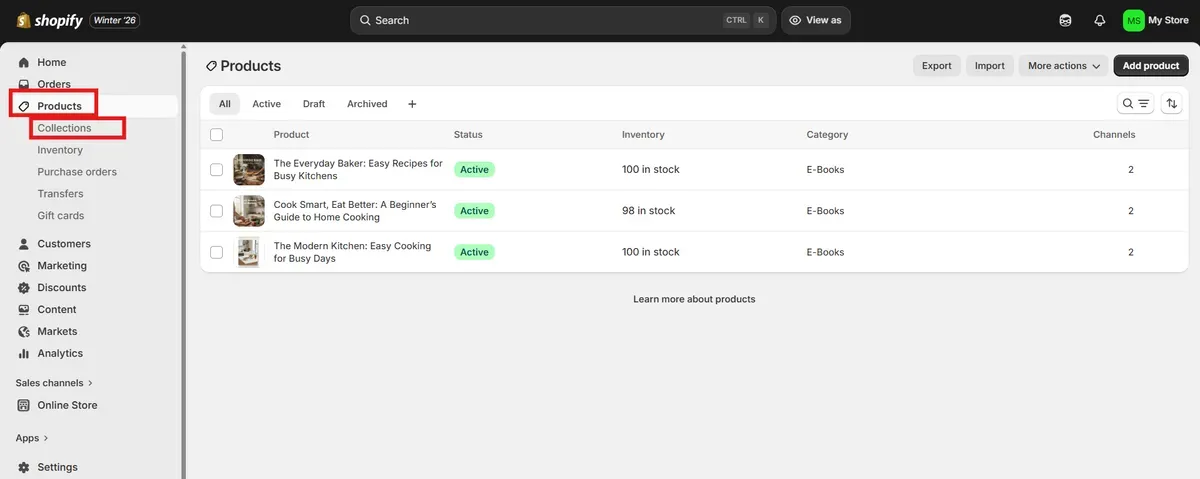
Step 2: Go to Products → Collections
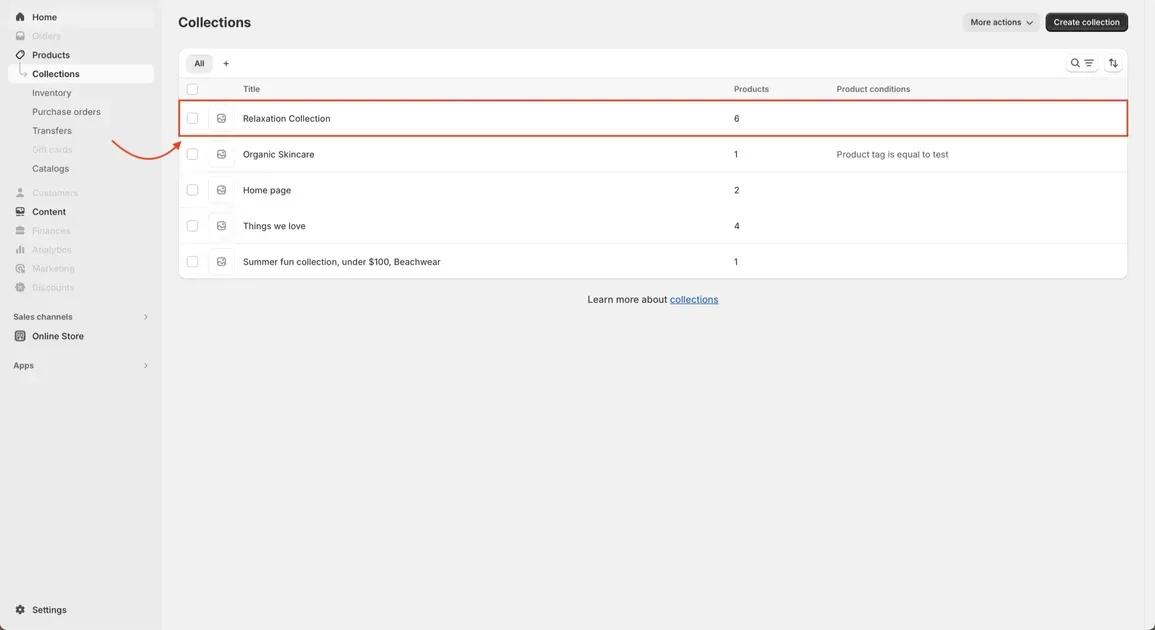
From the left menu, click Products, then select Collections. This lists all collections created in the store. Collections group products and let merchants set their order.
Step 3: Select the Desired Collection
Click the collection that needs a new product order. Only products inside that collection will be reordered. Make sure the collection type supports manual ordering.
Step 4: Set Sort to Manual
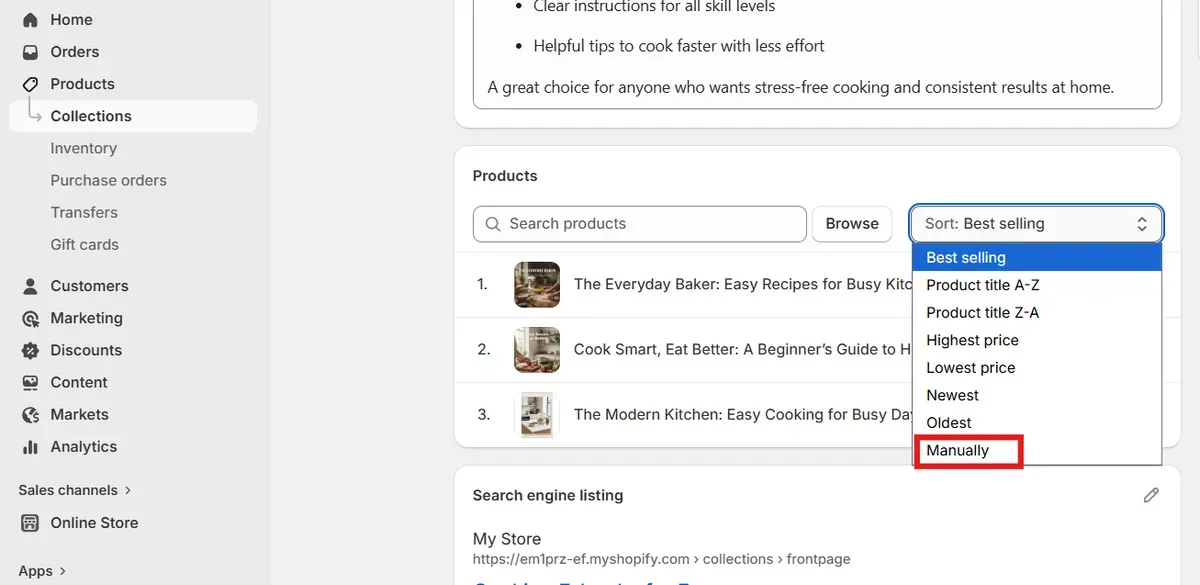
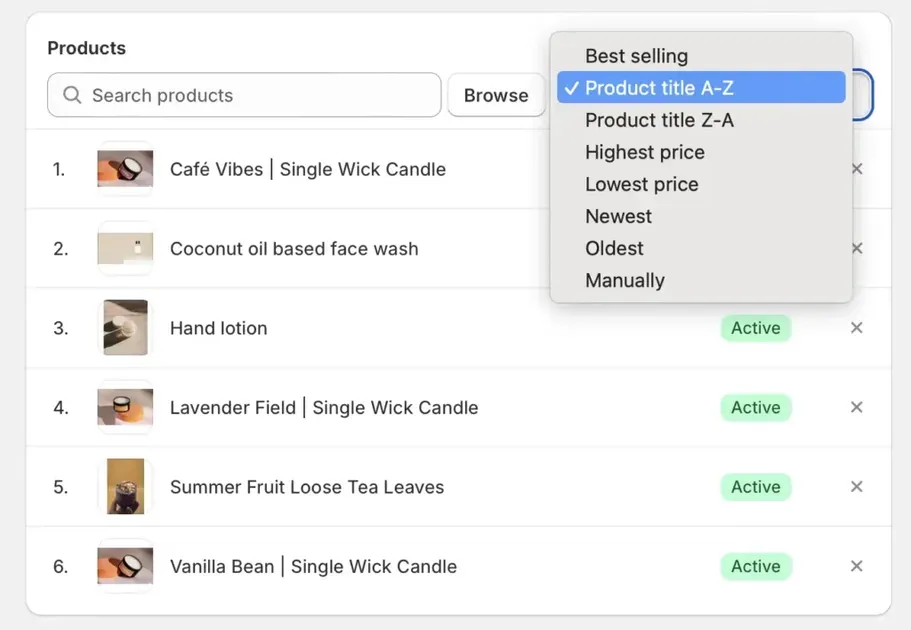
In the Products section of the collection editor, find the Sort dropdown menu. You will see options, including:
Best selling
Product title A–Z
Product title Z–A
Highest price
Lowest price
Newest
Oldest
Manually
Change the sort setting to Manually. This enables drag-and-drop ordering.
Step 5: Drag and Drop Products
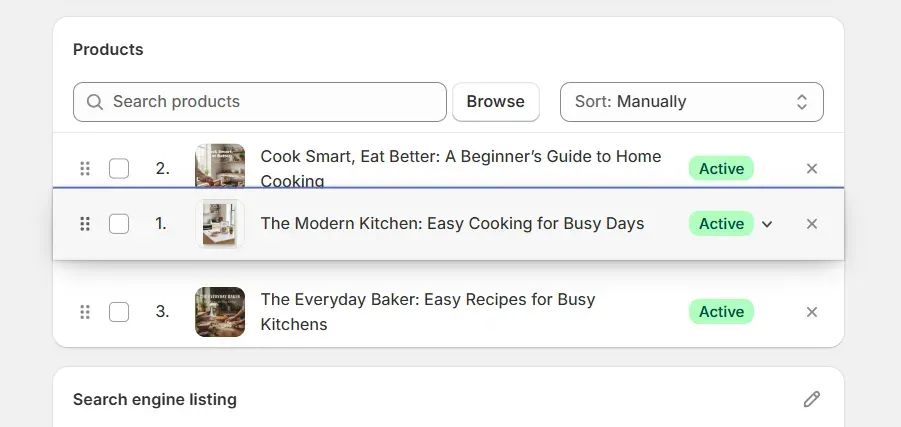
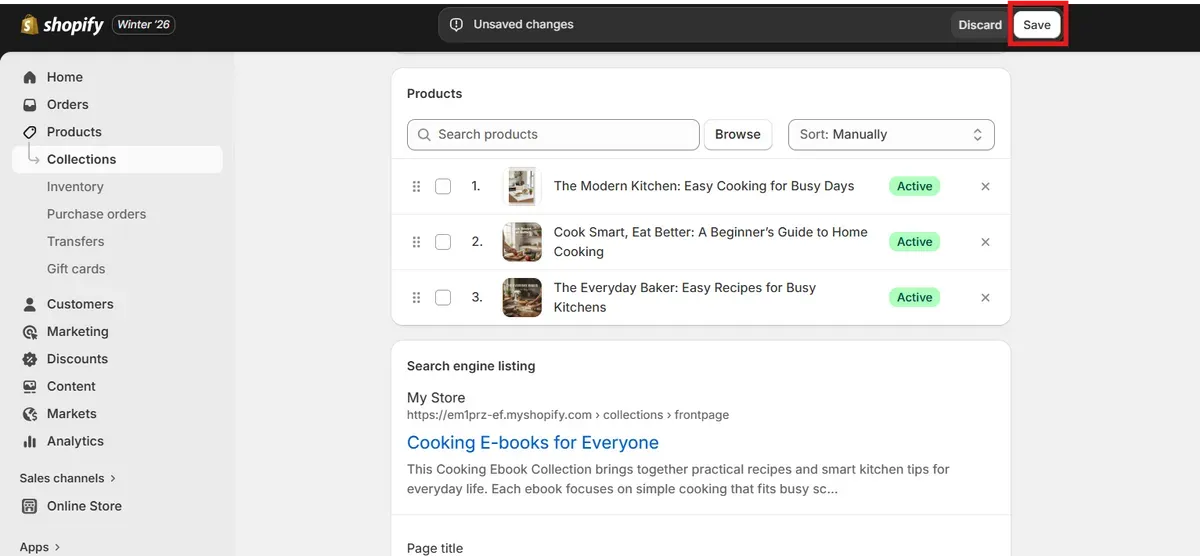
Once the manual sort option is active, click and hold the six-dot icon next to a product. Drag it up or down the list until it lands in the desired position. Important items should be placed near the top.
Step 6: Save the New Order
After arranging products, click Save to confirm changes. Save ensures the new order appears in the Shopify Admin. Some themes reflect the new order immediately.
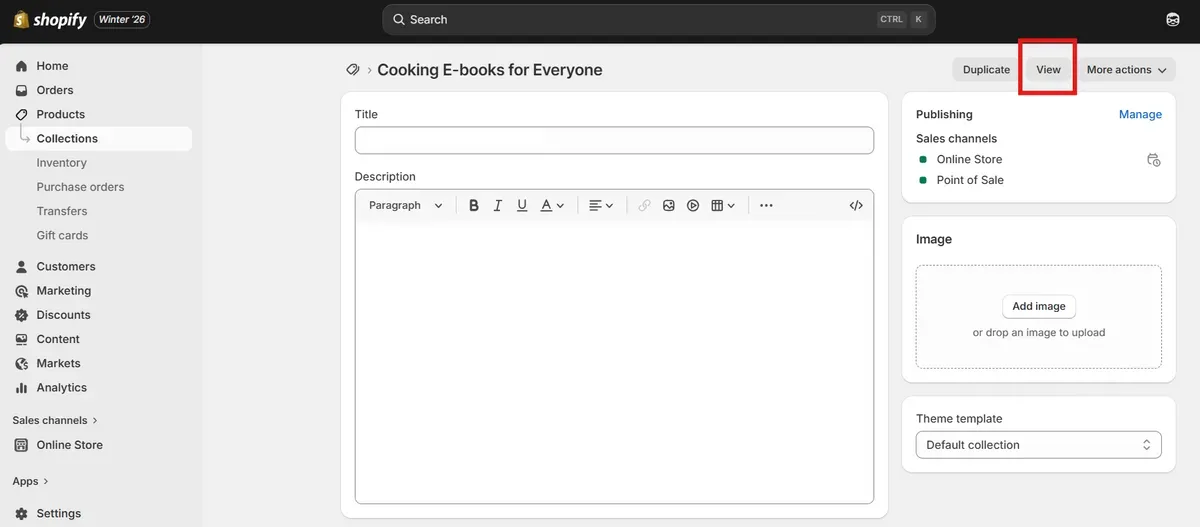
Step 7: Check on the Online Store
Preview the collection on the online store to confirm the order looks correct for customers. If the theme overrides sort settings, double-check theme settings or ensure the manual sort is still selected.
Now you know how to change the order of products in Shopify manually!
Method 2: Using Shopify Apps
Using a Shopify app like ST: Product & Collection Sort can make product ordering easier and more dynamic, especially for stores with large catalogs. This method works well when manual sorting becomes too slow or when rules based on performance are needed. How to change order of products on Shopify using ST: Product & Collection Sort? Follow the steps below:
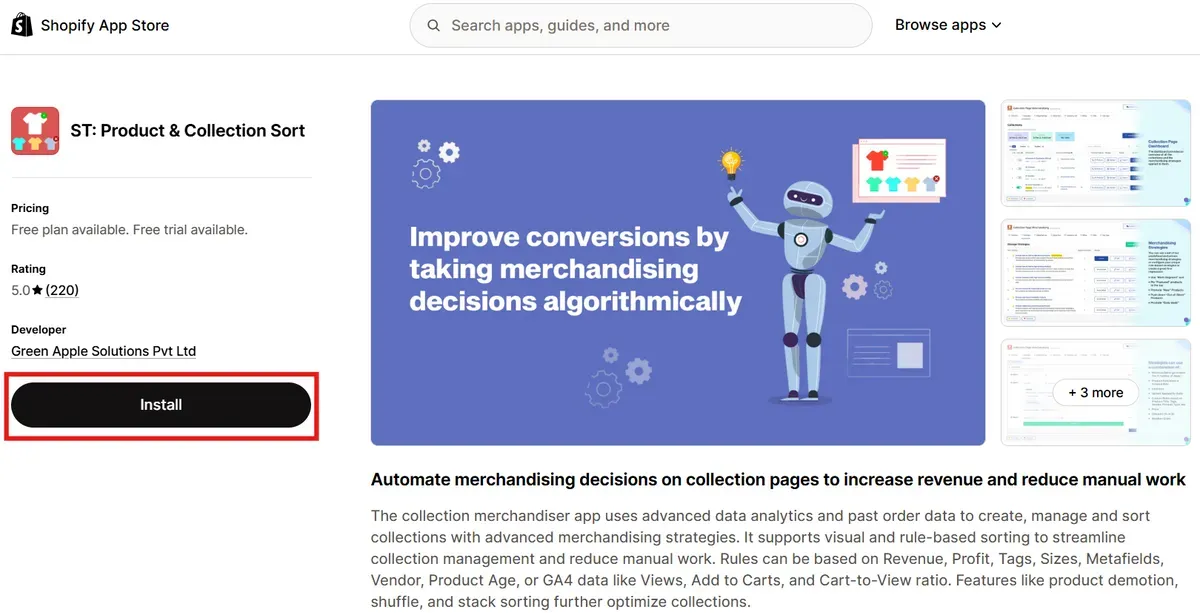
Step 1: Install the App
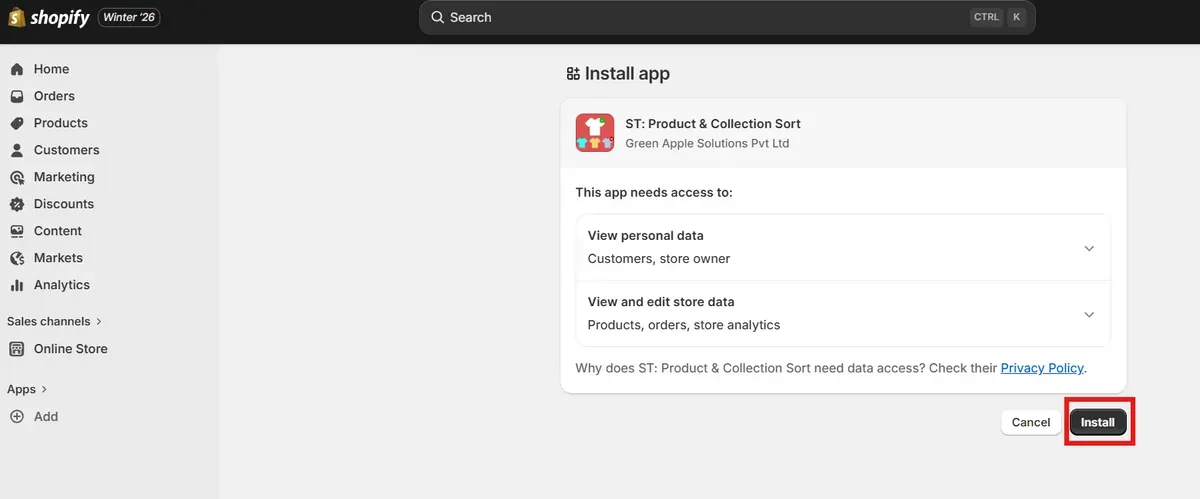
Go to the Shopify App Store and install the “SearchTap Merchandising App”. Confirm permissions so the app can access product and collection data in the store.
Step 2: Open the Merchandising Dashboard
Once installed, open the app from the Shopify Admin. The dashboard shows tools to manage product order, sort rules, and collection layouts.
Step 3: Choose the Collection to Sort
Pick a collection that needs a new product order. The app lists all collections, so select one to start sorting.
Step 4: Set Sorting Rules
Create sorting rules based on revenue, inventory, views, add-to-cart rates, or tags. These rules help push high-priority products to the top of the collection.
Step 5: Pin Featured Products
Use the visual drag-and-drop tool to pin featured or priority products at the top. This ensures key products get maximum visibility.
Step 6: Save and Preview Changes
Save the new product order inside the app and preview the collection on the live store. Confirm that the sort looks correct and aligns with merchandising goals.
That's the guide on how to change product order in Shopify using Shopify app!
Best Practices for Changing Product Order on Shopify
Below are the best practices when you learn how to change order of products on Shopify. These tips help improve product visibility, guide shoppers through collections, and support stronger sales performance:
Keep Product Sorting Consistent Across All Collections
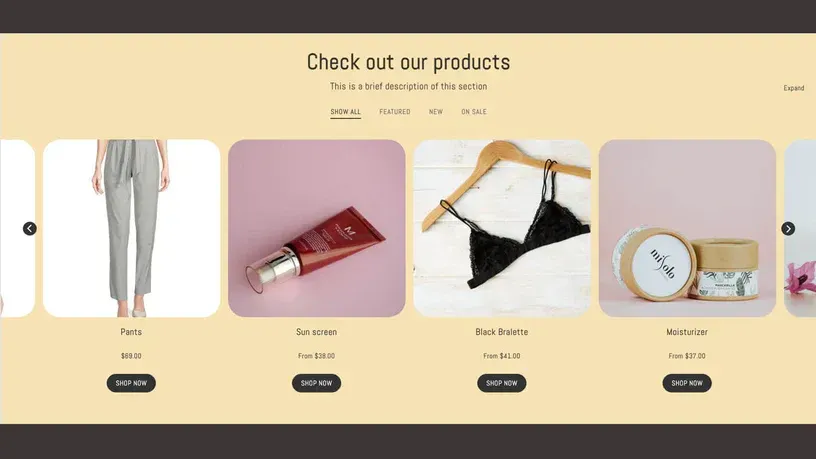
Consistent product sorting creates a familiar shopping flow across a Shopify store. When collections follow the same logic, visitors understand how products appear and move through pages with less effort. This clarity reduces bounce rates and supports stronger engagement.
Inconsistent sorting can confuse shoppers and break trust. A product shown first in one collection but last in another can feel random. Clear rules, such as best sellers first or newest items first, help maintain structure. Shopify also recommends consistent layouts to support navigation and usability.
Match Product Order With Customer Buying Behavior
Placing products in an order that aligns with how customers shop increases engagement. For example, popular or frequently bought items should appear near the top of collection pages. Monitoring analytics reveal which products draw views and which lead to conversions, helping tailor order to real behavior. Using customer data for sorting boosts relevance and sales potential.
Prioritize Best-Selling and High-Converting Products
Best-selling products build trust fast. New visitors often look for proof before making a purchase, and popular items provide that signal. Showing these products first increases exposure and improves conversion chances.
Shopify offers a built-in “Best Selling” sort option for automated collections. You can see this feature when learning how to change order of products on Shopify. This rule updates order based on sales activity, which keeps collections fresh. High-converting items stay visible without constant manual changes.
Optimize Product Order for Mobile Shoppers
Mobile users see fewer products on screen at once. The first few items carry the most weight and influence buying decisions. Important products should appear at the top to capture attention fast.
If key items sit too low, mobile shoppers may never reach them. Simple ordering improves scrolling flow and reduces friction. Shopify highlights mobile optimization as a core part of store performance and user experience.
Use Automation Rules to Save Time and Reduce Errors
After learning how to change order of products on Shopify, you may assume manual product ordering can be time consuming for large catalogs. So, automation tools or rules help maintain strategic order without constant manual updates. These systems can adjust based on sales, inventory, or trending items to keep collections fresh. Automation saves time and also ensures order logic stays consistent across updates.
Regularly Review and Update Product Sorting Strategy

Product performance changes over time. Seasonal demand, promotions, and trends can shift what matters most. When you know how to change order of products on Shopify, you should review sorting strategies regularly to ensure product order still supports sales goals.
Scheduled checks help identify items that drop in performance or gain traction. Updating order keeps collections relevant and competitive. Shopify encourages ongoing optimization to improve long-term store results.
Common Mistakes to Avoid When Reordering Products

After learning how to change order of products on Shopify, you know that changing product order can improve sales and navigation, but common errors can undo progress. These mistakes often occur when default settings or habits override smart sorting practices.
Relying Too Much on Manual Product Sorting
Manual drag-and-drop sorting works well for small collections but becomes slow and error-prone with large inventories. Too many moves can cause mistakes or make it hard to keep order updated.
→ Solution: Use automatic sort options like “Best Selling” or “Newest” for large catalogs. These built-in rules take care of many products at once. Add tags or conditions to smart collections so products fall into logical groups. This reduces manual work and keeps order consistent over time.
Forgetting That Automatic Sorting Overrides Manual Order
Some store owners set a manual order when knowing how to change order of products on Shopify, but don’t realize that other sort methods can override it. If a collection’s sort isn’t set to “Manual,” Shopify uses rules such as alphabetical or best-selling instead. This makes manual changes look like they disappeared.
→ Solution: When you learn how to change order of products on Shopify, always check the sort dropdown before expecting manual order to stick. Make sure the collection’s sort is set to “Manual.” If automation is needed, pick the right sort method, so manual placements are not lost.
Ignoring Product Order in Integrated Sales Channels
Many stores sell across multiple channels, like online stores, markets, or social platforms. Product order set in the online store might not apply to these other channels. Sales channels can have their own default sorting, which may confuse customers.
→ Solution: Review each channel’s product settings and adjust sorting rules. Align order logic, so products appear in the desired sequence on every platform. This keeps the brand experience uniform and reduces surprises for buyers.
Not Testing Product Order Changes Before Going Live
Making changes without previewing them can lead to errors showing up on the live site. Some themes or cached pages still show old order after updates. This frustrates store owners and customers alike.
→ Solution: After sorting products, test the collection on a preview or staging theme first. Clear the browser cache and check on multiple devices. This tip on how to change order of products on Shopify ensures the order looks correct before customers see it.
FAQs about How to Change Order of Products on Shopify
Can I change product order without using apps?
Yes. Manual sorting inside a collection lets products be reordered directly in Shopify Admin. This works best for small or curated product groups.
Why can’t I drag and drop products in my collection?
Drag-and-drop only works when collection sort is set to Manually. If another sort option is selected, the drag handles won’t appear
Does changing product order affect SEO?
Changing product order does not directly change page URLs or meta tags, so it won’t harm SEO. However, a clearer product order can improve user engagement, which may help rankings.
How often should I change product order?
You should review product order regularly, like before a big campaign or season. Frequent updates help keep collections aligned with performance and sales goals.
Does product order sync instantly to sales channels?
Product order rules set in the Online Store channel may not automatically apply to other sales channels. Each channel can have its own sorting settings.
Can product order be customized per customer?
Shopify does not offer per-customer product order by default. Custom experiences require advanced apps or personalized code.
Final Thoughts
Managing product order plays a key role in store performance and customer experience. Learning how to change order of products on Shopify allows better control over visibility, promotions, and buying flow. Clear sorting supports navigation, highlights priority items, and keeps collections aligned with business goals. Apply the methods and best practices covered in this guide to maintain clean, effective collections. Review product order often and adjust based on data, trends, and campaigns to keep the store competitive and easy to browse. Apply these strategies today and keep collections optimized for stronger results!

Hey! I'm Linda Bui. Join me as we explore tips and tutorials about Shopify apps and Shopify themes for your Shopify store.
Start Building Trust Today
Install the Product Reviews app to improve your store's credibility and boost sales with real customer reviews.
Get Started with Zero CostWhat to not miss out on our blog
Gain insightful knowledge and invaluable experiences from dedicated experts.
_1200x630.webp)
What Is Shopify Collabs? How It Works and How Brands Use It in 2026
Discover what is Shopify Collabs, how it automates affiliate tracking, and how to use it to scale influencer marketing from your dashboard. Read right now!
_1200x630.webp)
_1200x630.webp)
Newsletter
Get all the stories you need-to-know from the most powerful name in news delivered first thing every morning to your inbox