How to Add an Announcement Bar to Your Shopify Store
- What Is a Shopify Announcement Bar?
- Why Add an Announcement Bar to Your Shopify Store?
- How to Check If Your Shopify Theme Has an Announcement Bar
- How to Add an Announcement Bar to Shopify
- How to Customize a Shopify Announcement Bar
- Shopify Announcement Bar vs. Announcement Bar App: Which Should You Use?
- Shopify Announcement Bar Best Practices for Higher Conversions
- Frequently Asked Questions About Shopify Announcement Bars
- Final Thoughts
- Frequently Asked Questions
Could a small bar at the top of a store make a big difference in customer actions? A Shopify announcement bar can highlight promotions, shipping updates, product launches, or important store messages without disrupting the shopping experience. Adding one is simple, but setting it up effectively requires the right steps and settings. This guide explains how to add and customize an announcement bar to keep key messages visible. Let’s get started.
What Is a Shopify Announcement Bar?
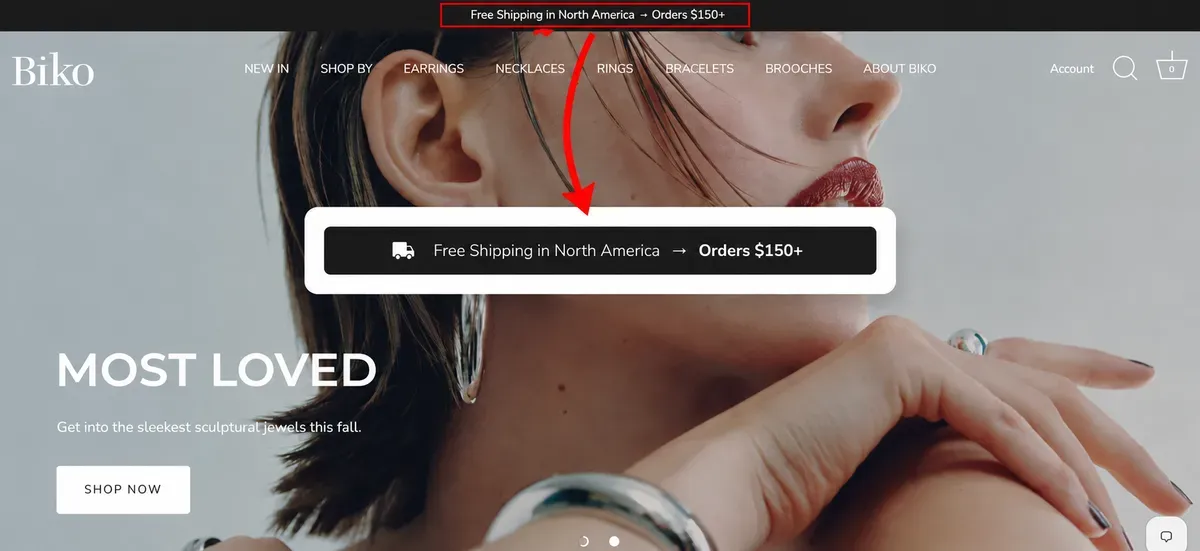
A Shopify announcement bar, also known as a Shopify banner notification, is a section in an online store theme that highlights important business messages. Store owners can use it to display promotions, shipping updates, new policies, gift card offers, or other timely information.
Shopify themes may include a built-in announcement bar, while some themes require an app for this feature. Shopify also supports up to 12 announcement blocks within one announcement bar section, giving stores space for multiple messages.
Why Add an Announcement Bar to Your Shopify Store?
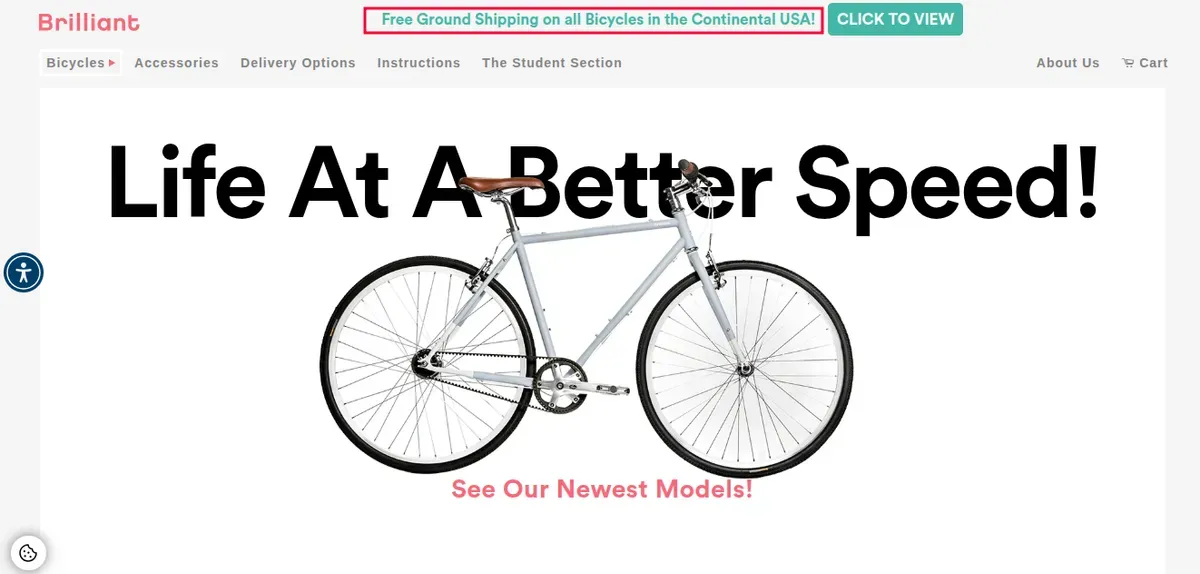
A clear announcement bar can put timely information in front of shoppers without taking up much space. From promotions to store updates, this feature supports several key e-commerce goals. While the bar broadcasts the same message to every visitor, pairing it with a newsletter popup adds a way to capture emails from shoppers who want ongoing updates.
Below are the reasons to add an announcement bar to a Shopify store:
Promote Sales and Special Offers
An announcement bar gives promotions a visible spot across the storefront. It can highlight limited-time sales, discount codes, new gift cards, or seasonal deals and link shoppers to the relevant collection or product page. Shopify specifically recommends announcement bars for promoting current sales and gift card offers.
Promote Free Shipping
Free shipping can make an offer more appealing, especially when customers know the eligibility rules. An announcement bar can highlight messages such as “Free shipping on orders over $50” and direct shoppers to products or terms that support the offer. Shopify supports both free shipping discounts and free shipping rates based on order value.
Share Important Store Updates
An announcement bar can quickly communicate changes that shoppers need to know before placing an order. Useful examples include:
Shipping delays
Temporary service changes, eg: Closed for the holidays
Updated store policies
Regional shipping restrictions
Shopify recommends announcement bars for shipping delays, regions that do not accept international shipments, and new or updated policy pages.
Direct Customers to Important Pages
Adding a link turns an announcement into a clear next step. Shopify lets merchants link an announcement to a specific URL or select a page from the online store, making it useful for guiding shoppers to collections, promotions, policies, or other key pages.
How to Check If Your Shopify Theme Has an Announcement Bar
Not every Shopify theme includes a built-in announcement bar. Shopify recommends checking the theme editor, reviewing the theme documentation, or contacting the theme developer before adding an app.
Step 1: Open the Shopify Theme Editor
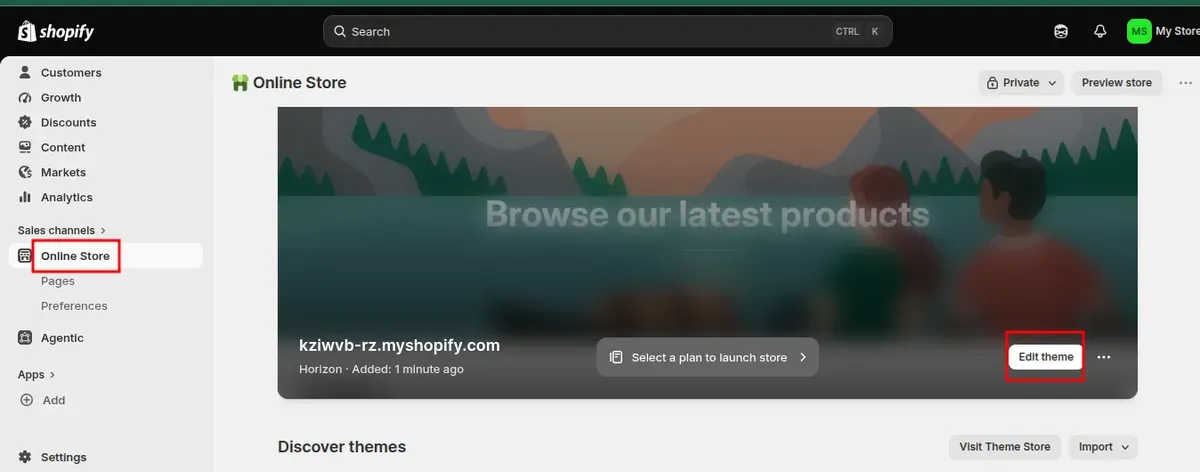
From the Shopify admin, go to Online Store. Find the theme that needs checking, then click Edit theme to open the theme editor.
Step 2: Check the Sections List
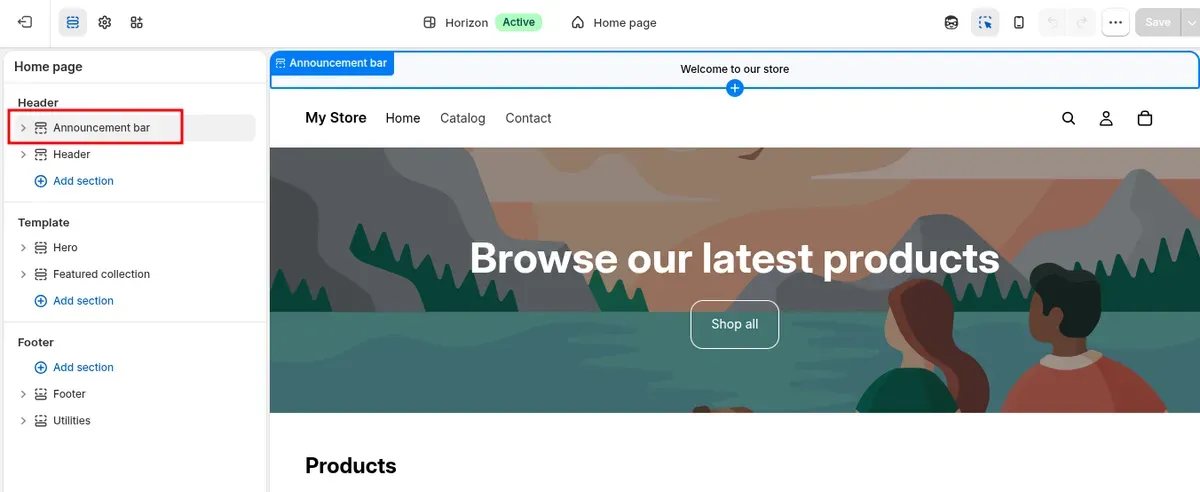
Look at the sidebar in the theme editor and find the Announcement bar section. Shopify places the announcement bar within the Shopify header announcement area, so expanding the header section may also reveal it.
Step 3: Look for Announcement Settings
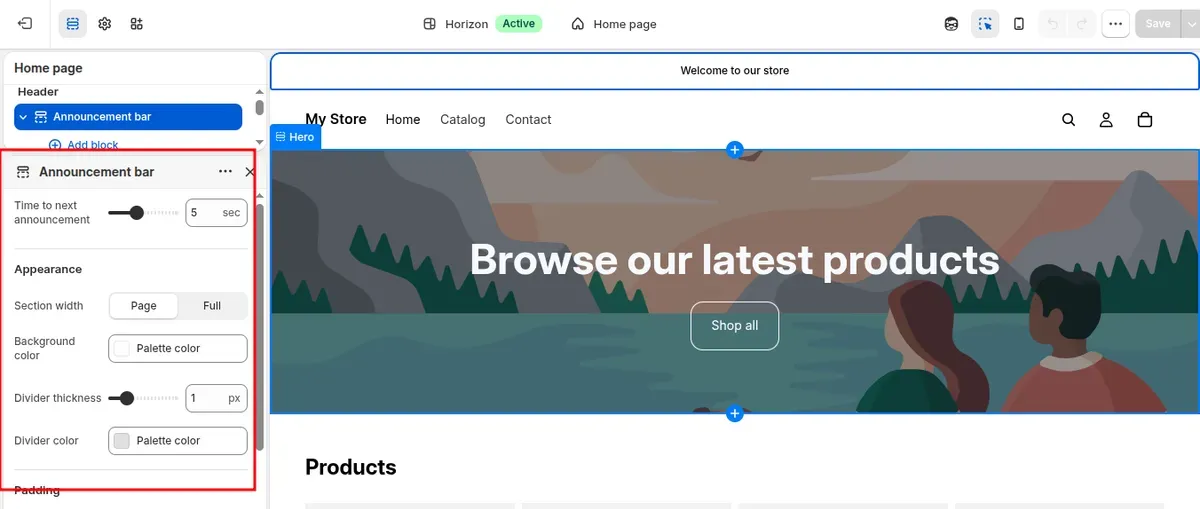
Click Announcement bar if it appears in the sidebar. A built-in section typically includes options for adding announcement text, links, colors, and other display settings.
Step 4: Check the Theme Documentation
If no announcement bar appears, check the documentation for the current theme. Shopify notes that some themes include this feature while others require an app to add an announcement bar.
Step 5: Contact the Theme Developer if Needed
Still unsure? Contact the theme developer for confirmation. For Shopify-supported themes, Shopify Support can also help determine if the theme includes an announcement bar feature.
How to Add an Announcement Bar to Shopify
Wondering how to add announcement bar Shopify without touching the theme code? Shopify provides a built-in option in supported themes, so the setup usually takes only a few steps.
Here are the steps to add and customize an announcement bar:
Step 1: Open Your Shopify Theme Editor
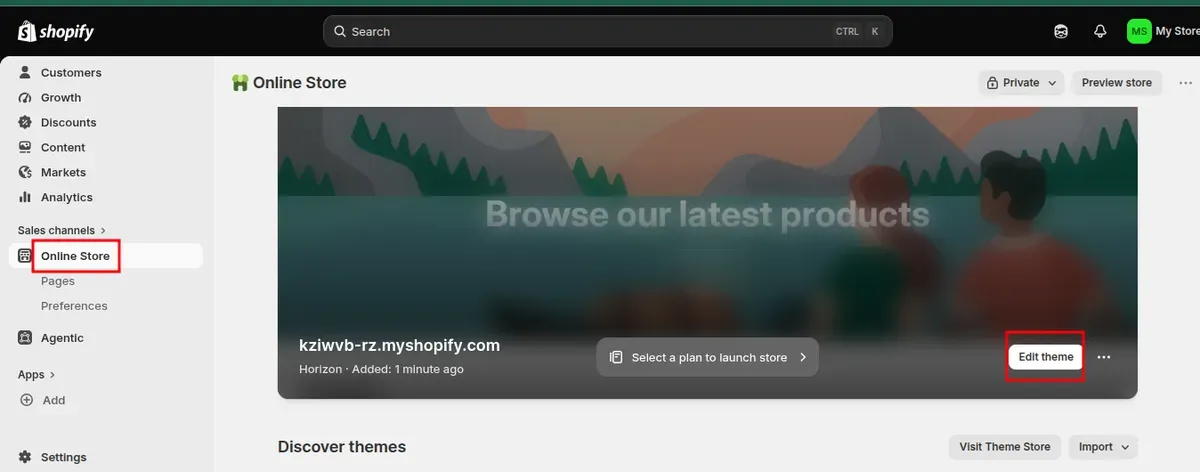
From the Shopify admin, go to Online Store and find the theme that needs the announcement bar. Click Edit theme to open the theme editor and access the available sections and settings.
Step 2: Open the Announcement Bar Section
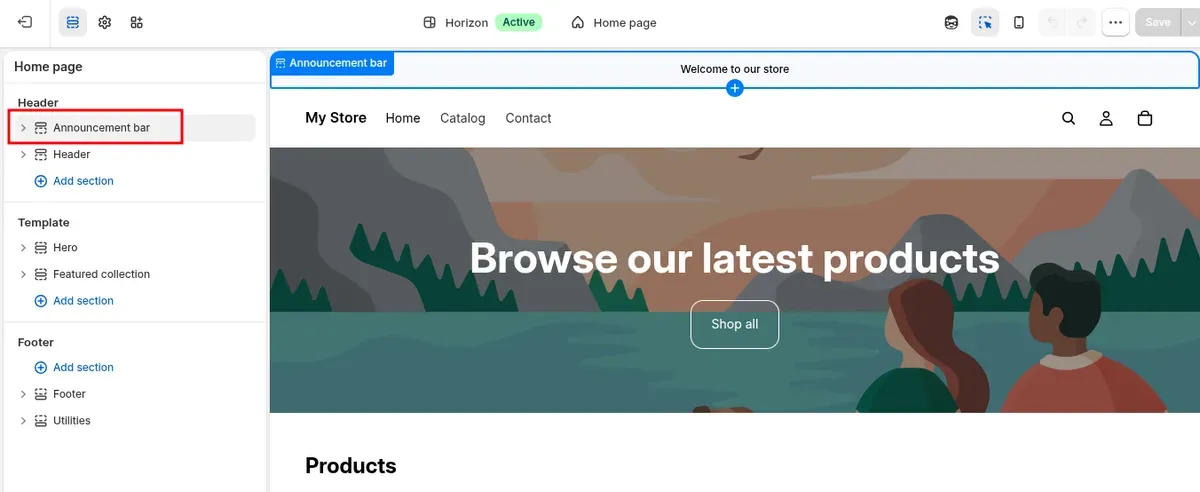
Find Announcement bar in the theme editor. Depending on the theme, the section may appear directly in the section list or under the Header settings.
If the option does not appear, check the theme documentation. Some Shopify themes do not include a built-in announcement bar and may require an app instead.
Step 3: Add Your Announcement Message
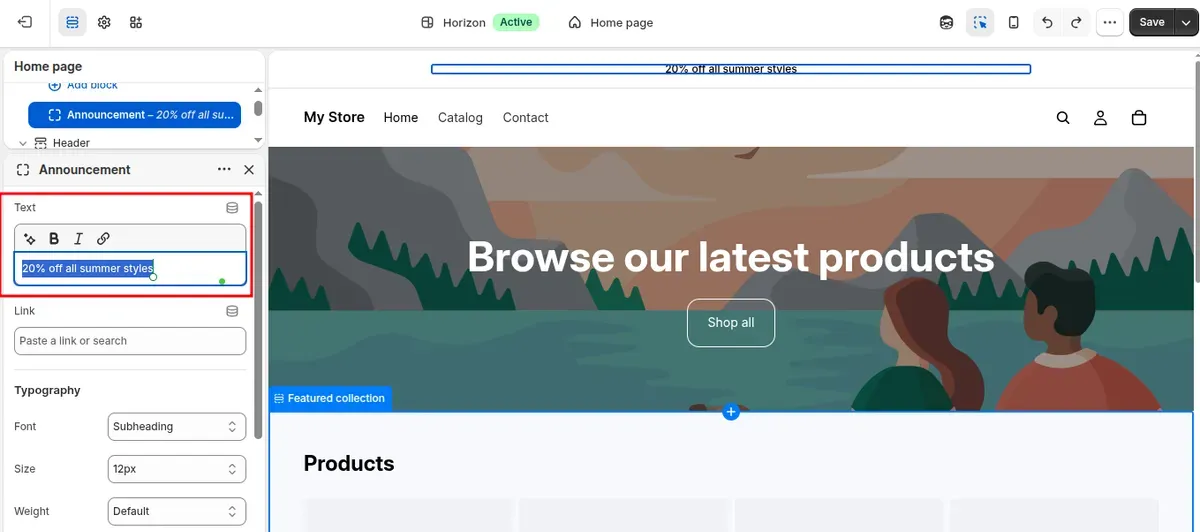
Click Add Announcement and enter the desired message in the Text field. Keep the copy short and clear so shoppers can understand the offer or update quickly.
Good announcement examples include:
Free shipping on orders over $50
20% off all summer styles
New arrivals are here
Orders may take 1–2 extra days to ship
Step 4: Add a Link to Your Announcement
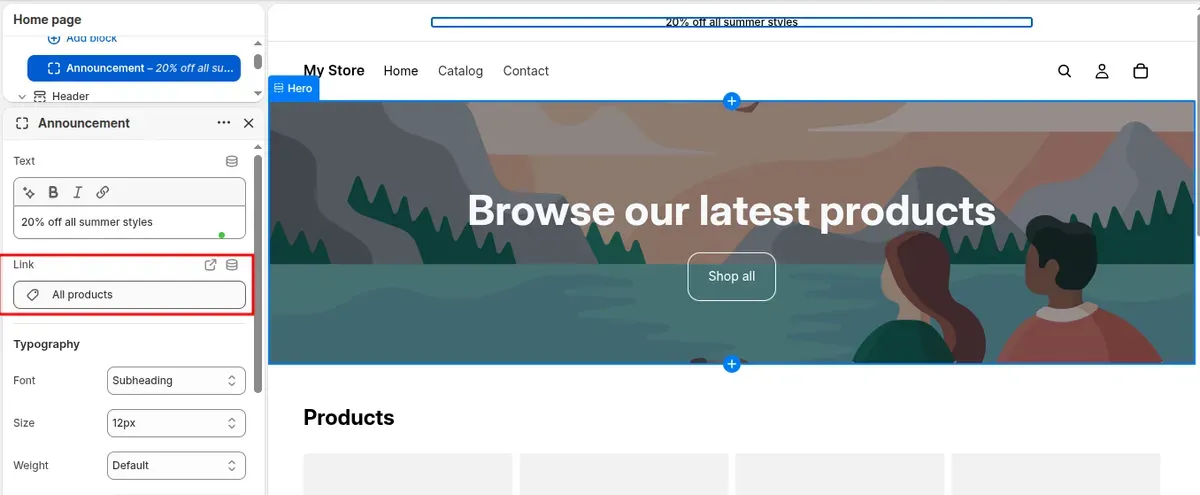
Click the Link field to make the announcement clickable. Enter a URL or use the dropdown menu to select a page from the online store.
Choose a destination that matches the message. For example, link a sale announcement to the relevant collection instead of sending shoppers to the homepage.
Step 5: Save and Preview Your Announcement Bar
Click Save after completing the announcement settings. Then preview the storefront to check the message, link, spacing, and overall appearance before publishing the changes.
Check the announcement on both desktop and mobile screens. Make sure the text remains easy to read, and the link leads to the correct page.
How to Customize a Shopify Announcement Bar
If you want to make the announcement bar more useful and consistent with the store design, Shopify provides several built-in customization options. These settings can help improve visibility, organize multiple messages, and support shoppers in different markets.
Change the Announcement Bar Colors
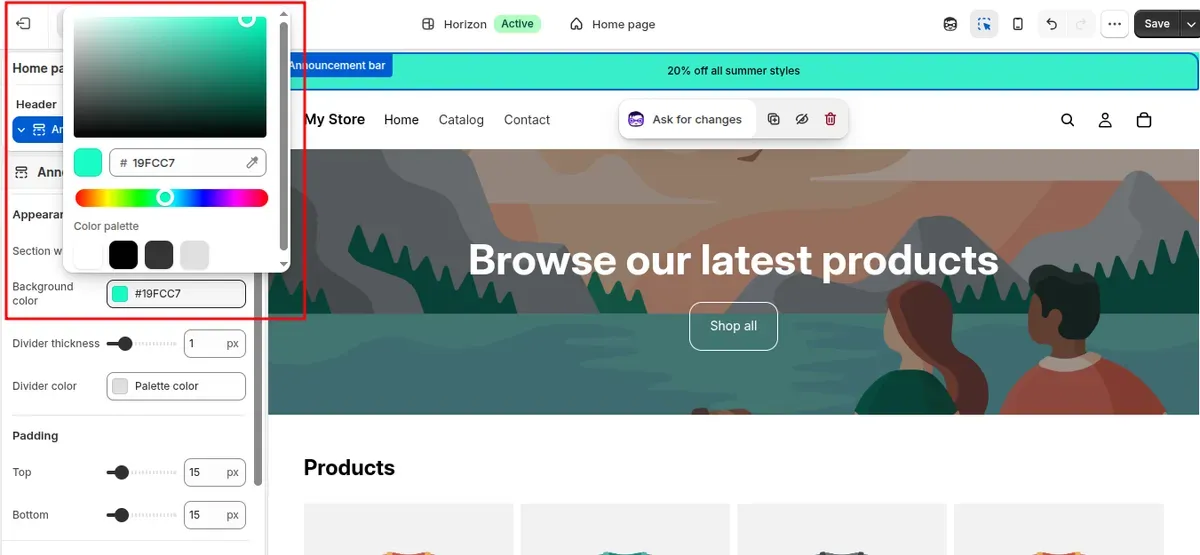
Open Online Store > Edit theme > Announcement bar in the Shopify theme editor. Under the section settings, select a color scheme to change the bar's background and text colors, and use Show separator line if a visual divider fits the store design.
Choose colors that provide strong contrast and match the store's existing branding. A clear color scheme helps the announcement stand out without making the top of the page feel distracting.
Add Multiple Announcement Messages
A single bar can include up to 12 separate message blocks. Each block can contain a separate message, such as a sale, free shipping offer, or shipping update.
Multiple messages can cover different promotions without adding another section to the storefront. Keep each message short so shoppers can read it quickly.
Add Social Media, Language, or Region Options
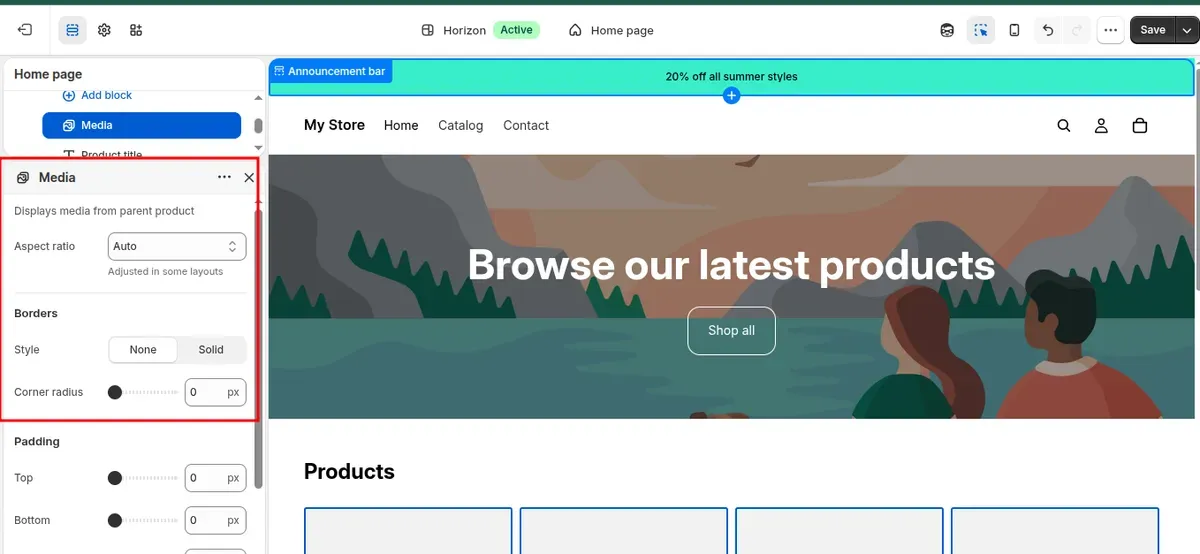
The announcement bar can include social media icons, a language selector, and a country or region selector when the theme supports these options. Select the relevant settings in the Announcement bar section to display these features.
For stores serving several markets, region-specific theme customization can also help show different content to customers in different markets. Shopify currently offers per-market theme customization on the Advanced plan or higher.
Adjust the Announcement Order and Rotation
When multiple announcements appear, Shopify lets store owners change their order by dragging the ⋮⋮ icon. The bar can also rotate messages automatically by enabling Auto-rotate announcements and selecting how often slides change.
Place the most important message first and keep the rotation speed comfortable for reading. Manual navigation also lets shoppers move between announcements using the available chevron buttons.
Shopify Announcement Bar vs. Announcement Bar App: Which Should You Use?
A built-in Shopify announcement bar works well for simple store messages and basic promotions. An announcement bar Shopify app makes more sense when a store needs advanced targeting, countdowns, animations, or deeper design control. Shopify itself recommends using an app when the theme lacks an announcement bar or the built-in settings do not meet the store’s needs.
| Shopify Announcement Bar | Announcement Bar App | |
|---|---|---|
| Setup | Quick setup through the Shopify theme editor | Requires app installation and configuration |
| Coding | No coding for built-in settings | Most apps require no coding |
| Cost | Included with supported themes | Free plans exist, but advanced features often require a paid plan |
| Basic messages | Excellent for simple announcements, promotions, and updates | Excellent, with more message formats |
| Advanced animations | Limited theme-dependent options | More animation, scrolling, and rotating options |
| Countdown timers | Not a standard built-in feature | Available in many apps |
| Targeting | Basic theme and market options | More advanced page, product, device, location, and customer targeting |
| Customization | Basic colors, text, links, and theme settings | More control over layouts, fonts, colors, buttons, animations, and custom CSS |
| Scheduling | Usually limited or not available as a built-in option, depending on the theme | Often supports scheduling announcements to start and end automatically |
| Page load speed | Usually lighter because it is built into the theme and does not require an extra app | May add extra scripts or app resources, which can affect page load speed depending on the app |
Which Option Should You Choose?
Choose the Shopify announcement bar when basic messages, links, and simple promotions meet the store's needs.
Choose an announcement bar app when advanced targeting, countdown timers, animations, scheduling, or deeper customization matter more.
Shopify Announcement Bar Best Practices for Higher Conversions
How can a store turn that small space into a stronger conversion tool? The right message, design, and timing can make the bar more useful and easier to act on.
Keep Your Message Short and Clear
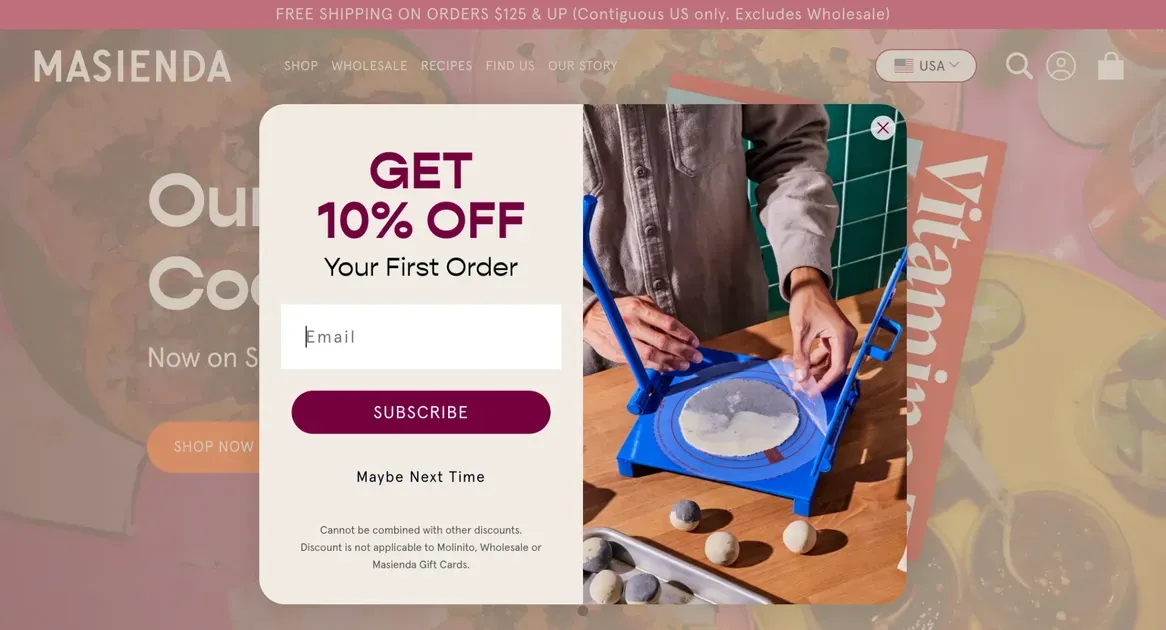
Use a short message that communicates the main benefit quickly. Avoid long explanations, multiple offers, or extra details that can make the bar harder to scan.
For example, “Free shipping on orders over $50” works better than a full sentence explaining shipping terms. Shopify also recommends concise messaging and clear calls to action in its marketing guidance.
Use a Strong Call to Action
Give shoppers a clear next step when the announcement supports a specific goal. Link the bar to the most relevant page, collection, or promotion.
Useful CTA phrases include:
Shop the Sale
Get Free Shipping
Shop New Arrivals
Claim the Offer
Learn More
Shopify's announcement bar settings let merchants add a link to direct customers to a specific URL or store page.
Make the Announcement Relevant
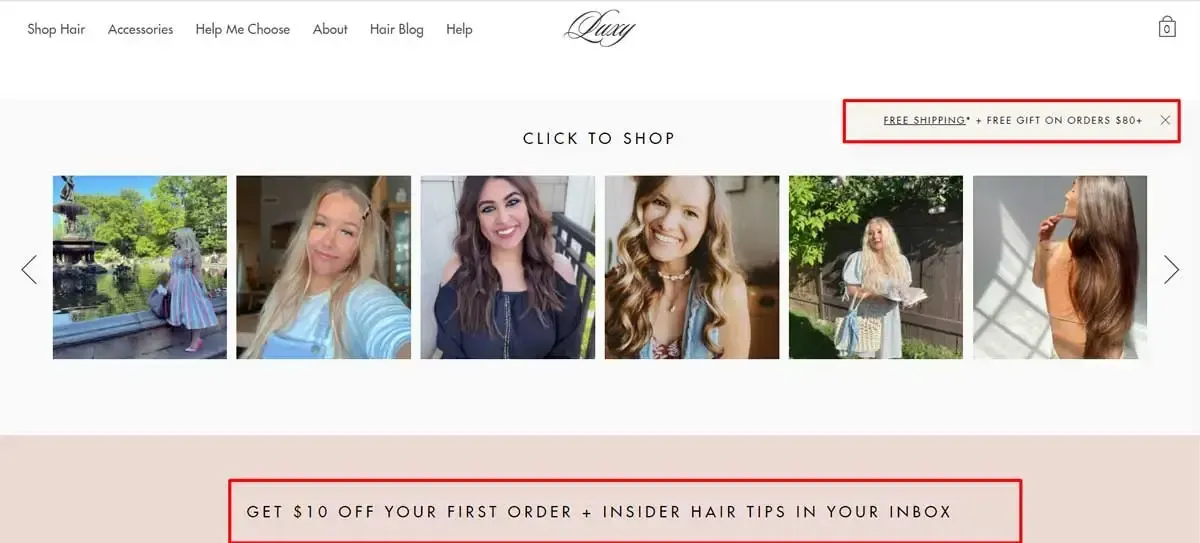
Show information that matters to current shoppers. Promotions, free shipping offers, new products, shipping updates, and important store policies can all fit an announcement bar.
For stores serving different markets, Shopify also supports market-specific theme content on the Advanced plan or higher. This option can help display offers that match a customer's market.
Make Sure the Bar Is Easy to Read
Choose strong contrast between the text and background. Keep the font size comfortable and avoid excessive animation, emojis, or decorative elements that compete with the message.
Shopify's theme editor lets merchants adjust colors and other visual settings while previewing changes directly in the storefront.
Test the Announcement on Mobile
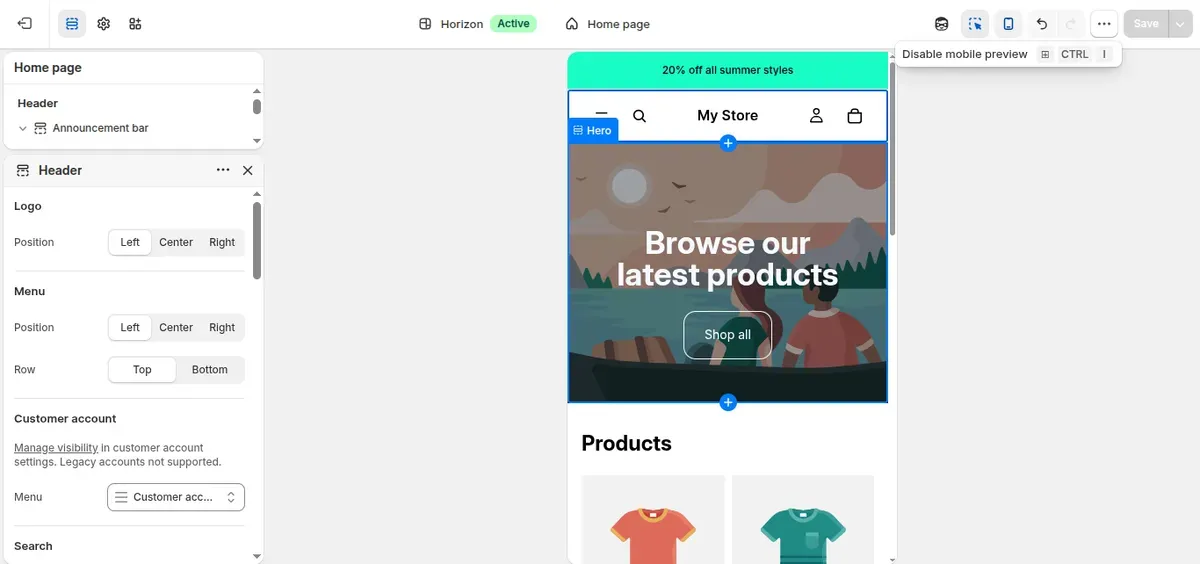
Check the announcement on a small screen before publishing it. Long text can wrap into multiple lines and take up valuable space near the top of the page.
Shopify's theme editor includes a mobile preview, so merchants can check how the storefront looks on smaller screens.
Update or Remove Expired Announcements
Remove messages as soon as an offer, event, or store update ends. An outdated announcement can confuse shoppers and make the storefront look neglected.
Shopify lets merchants hide an announcement without deleting it or remove the announcement block permanently from the theme editor.
Make the announcement bar accessible
An announcement bar should be readable for every shopper, including people with low vision or those who browse with assistive tools. A few small settings make a big difference:
Check the color contrast. Choose a text and background combination with a contrast ratio of at least 4.5:1. Light gray text on a pastel background may look stylish, but it is hard to read, especially on mobile screens in bright light. You can test your color scheme with a free tool such as the WebAIM Contrast Checker.
Slow down auto-rotation. If you turn on Auto-rotate announcements, set the interval to 5 seconds or more. Shorter intervals make messages disappear before shoppers can finish reading them.
Never hide key information in the second slide. Not every shopper will see every message in a rotating bar. Put the most important offer or notice in the first announcement, and treat later slides as bonus information rather than essentials.
Frequently Asked Questions About Shopify Announcement Bars
Does Shopify have a free announcement bar?
Yes. Many Shopify themes include a built-in announcement bar that you can add and customize through the theme editor without coding. If a theme lacks this feature, Shopify also supports announcement bar apps.
Can a Shopify announcement bar support multiple languages?
Yes. Shopify supports multilingual store content, and announcement bar content can be localized using Shopify Translate & Adapt when the theme or content is compatible.
Can I add multiple announcement bars to Shopify?
No, Shopify allows one announcement bar section per theme, but merchants can add up to 12 announcement blocks within it. These messages can rotate automatically or let shoppers move between them manually.
Can I add an announcement bar without coding?
Yes. The Shopify theme editor lets merchants add and customize an announcement bar without editing theme code. Go to Online Store → Edit theme, then open the announcement bar section.
Why isn't my Shopify announcement bar showing?
If your Shopify announcement bar is not showing, check the following:
Make sure the announcement block is enabled in the theme editor.
Check whether the theme has been published.
Clear your browser cache before checking.
Confirm that your changes have been saved.
Check whether your current theme includes a built-in announcement bar.
Review the theme settings to see if the bar is hidden on certain pages or devices.
If the theme does not support an announcement bar, check the theme documentation or use a compatible Shopify app.
Final Thoughts
Adding a Shopify announcement bar gives stores a simple way to highlight promotions, shipping updates, and important messages. The built-in theme editor makes setup and customization straightforward, while apps can add advanced features when needed. Keep each message short, relevant, and easy to read across devices. Regularly review announcements to keep the storefront accurate and useful for shoppers.
Frequently Asked Questions
What is a Shopify announcement bar?
An announcement bar is a slim bar, usually at the top of the store, that highlights promotions, shipping updates, product launches, or important store messages without interrupting the shopping experience.
Does my Shopify theme include an announcement bar?
Most modern Online Store 2.0 themes, including Dawn, include an announcement bar section in the theme editor where you can add text, links, and up to 12 announcement blocks.
Do I need an app for an announcement bar?
Not necessarily. The built-in section handles basic messages, while an announcement bar app adds countdown timers, advanced animations, targeting, and richer customization.
How do I add an announcement bar without coding?
In the Shopify admin, open Online Store, then Customize. In the theme editor add the Announcement bar section, edit the text and link, then Save.
What should I put in an announcement bar?
Keep it short with one clear message and one clear link, such as free shipping thresholds, sitewide sales, launch announcements, or time-limited offers with a countdown.

Hey! I'm Linda Bui. Join me as we explore tips and tutorials about Shopify apps and Shopify themes for your Shopify store.
Start Building Trust Today
Install the Product Reviews app to improve your store's credibility and boost sales with real customer reviews.
Get Started with Zero CostWhat to not miss out on our blog
Gain insightful knowledge and invaluable experiences from dedicated experts.
_1200x630.webp)
Best Shopify Wishlist Apps: Let Customers Save What They Love
Need a Shopify wishlist app for your store? Let's compare 7 leading options for 2026 and find the right mix of features, pricing, alerts, and integrations.
_1200x630.webp)
_1200x630.webp)
Newsletter
Get all the stories you need-to-know from the most powerful name in news delivered first thing every morning to your inbox